


SAML SSO
Configure SAML 2.0 single sign-on for your organization.
SAML SSO lets your team sign in to Doow using your organization's identity provider. Members authenticate through your IdP instead of managing separate Doow passwords.
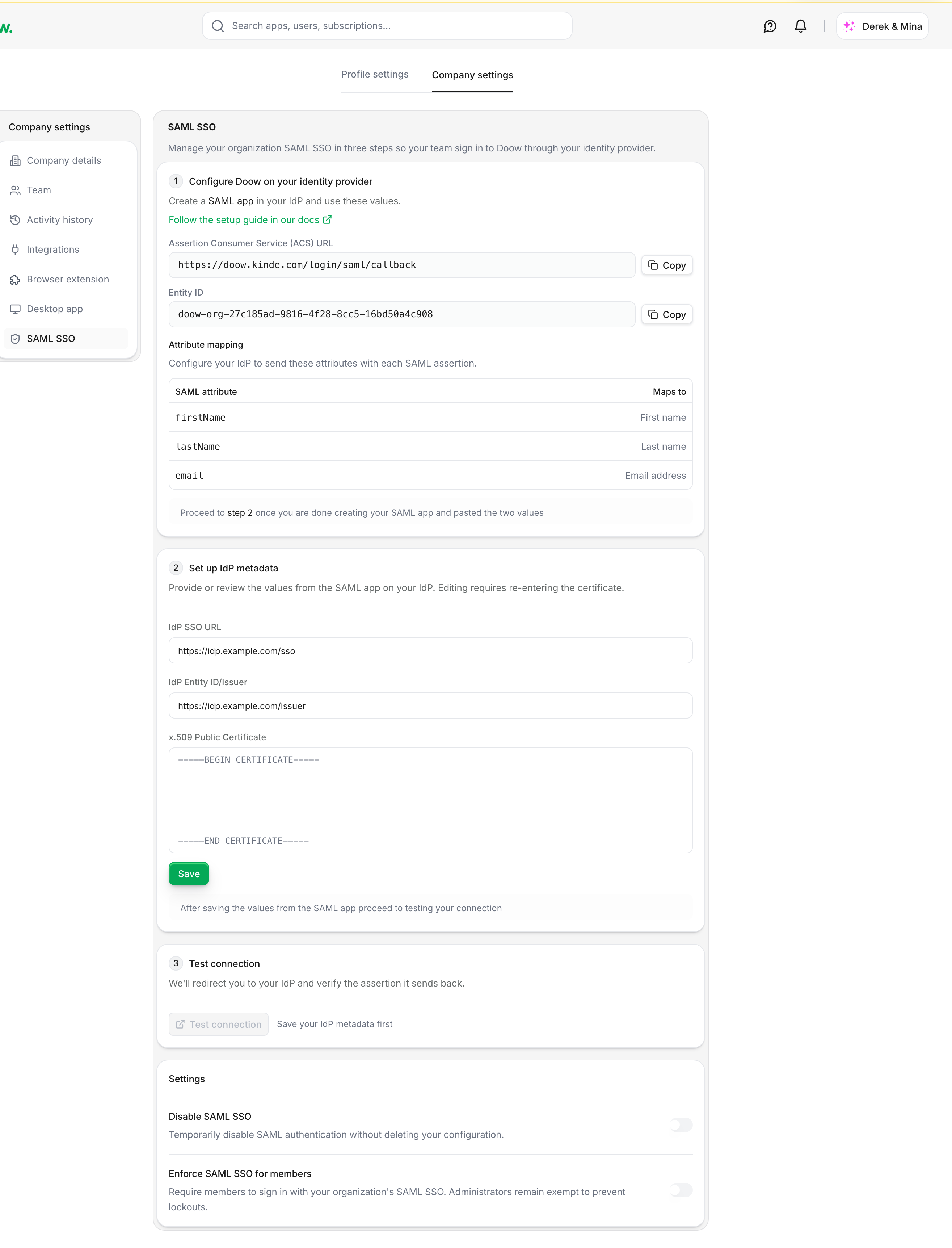
What you need
- A Doow workspace on the Business, Professional, or Enterprise plan.
- An identity provider that supports SAML 2.0 (Okta, Azure AD, OneLogin, Google Workspace, or any SAML-compatible IdP).
- Admin access to both Doow and your identity provider.
How it works
- A member visits Doow and enters their email address.
- Doow redirects the member to your identity provider.
- The member authenticates with your IdP (password, MFA, etc.).
- Your IdP sends a signed SAML assertion back to Doow.
- Doow verifies the assertion and signs the member in.
Step 1: Configure your identity provider
Before configuring Doow, create a SAML application in your identity provider. You need two values from Doow to complete the IdP setup:
- Go to Company Settings → SAML SSO in your Doow workspace.
- Copy the ACS URL (Assertion Consumer Service URL).
- Copy the Entity ID (Service Provider Entity ID).
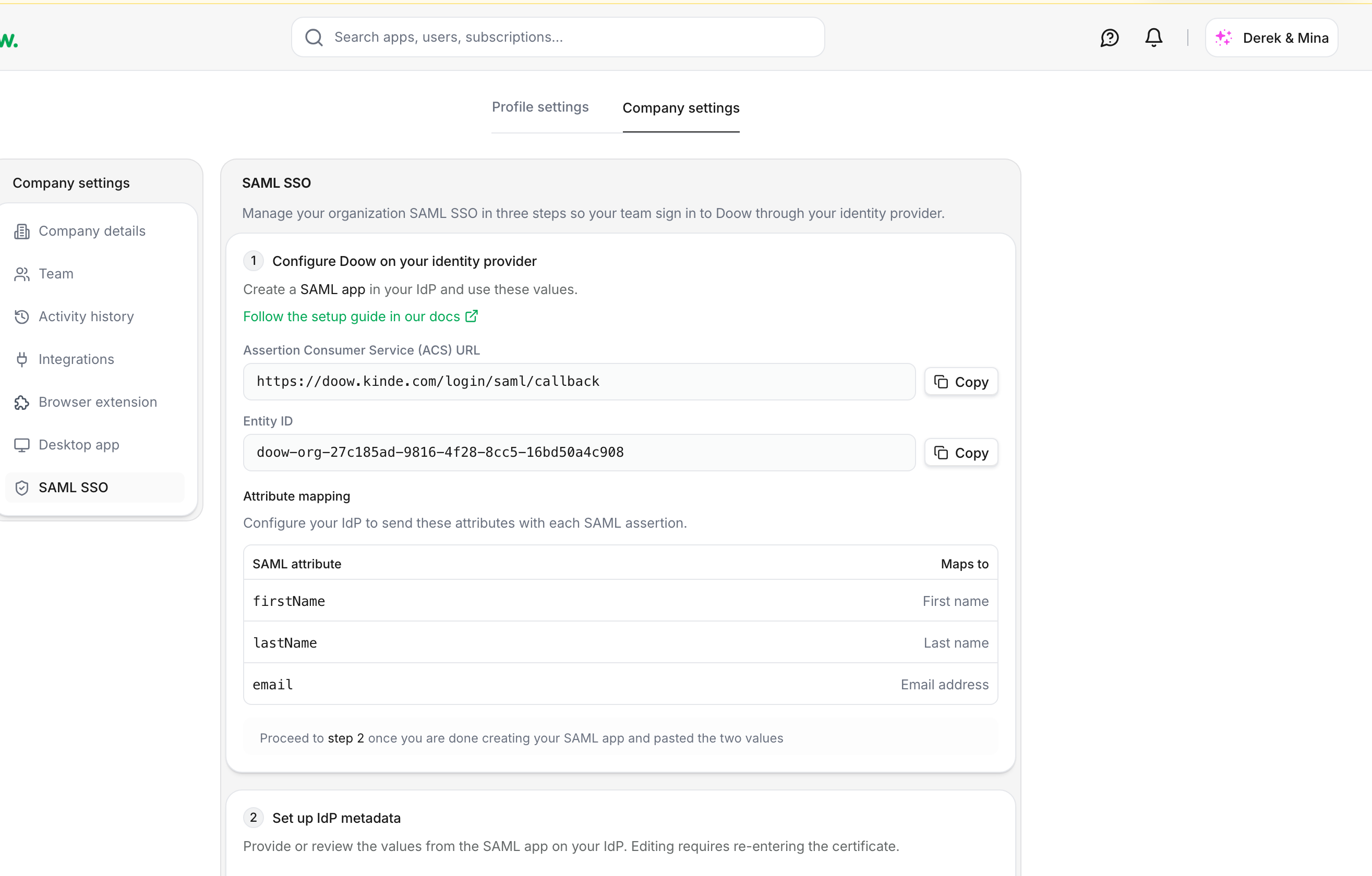
Use these values when creating the SAML application in your IdP.
Attribute mappings
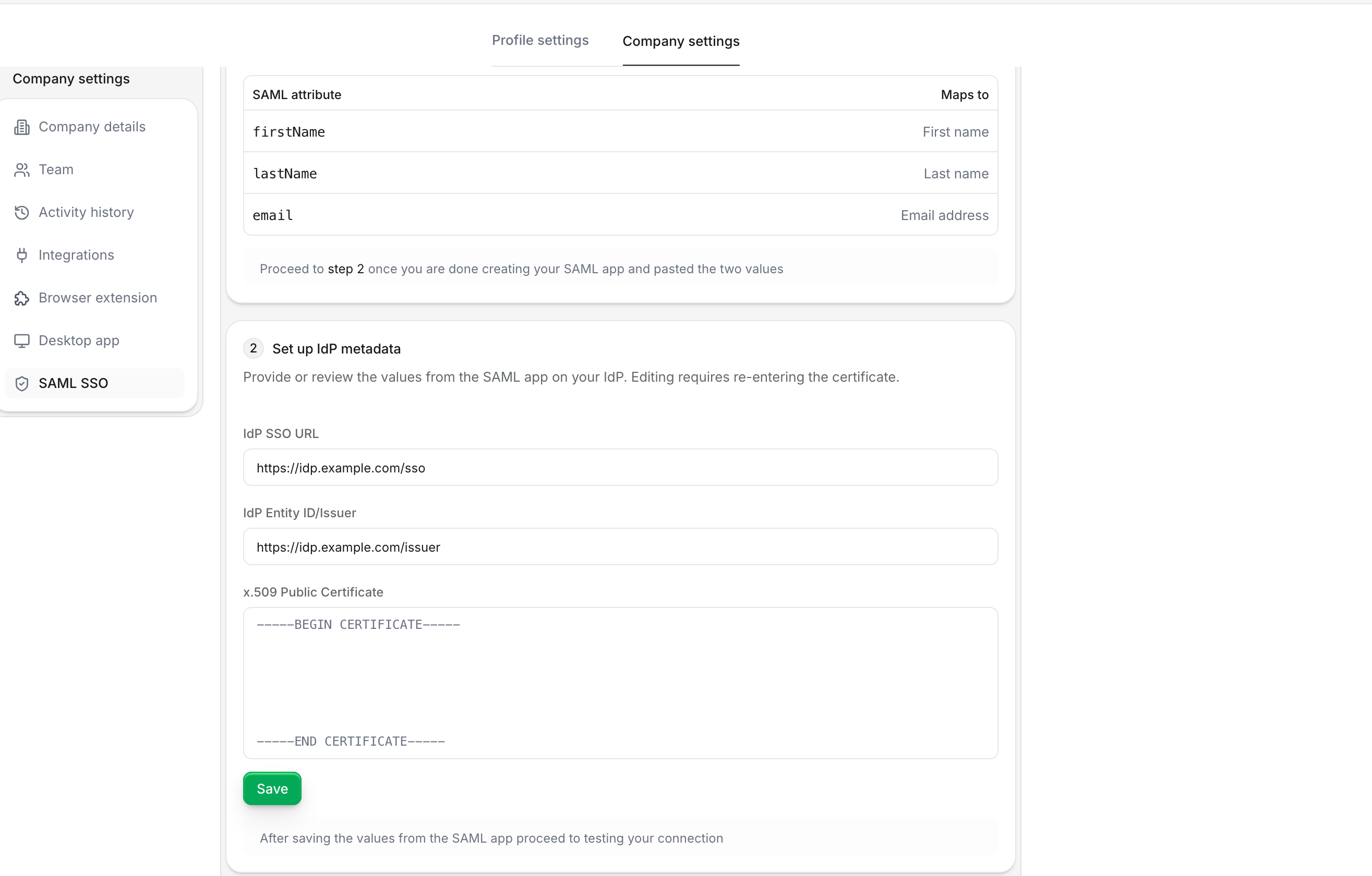
Configure your IdP to send these attributes in the SAML assertion:
| Doow attribute | IdP attribute | Required |
|---|---|---|
firstName | First name | Yes |
lastName | Last name | Yes |
email | Email address | Yes |
The email attribute must match the member's email address in Doow.
Provider-specific guides
Select your identity provider for detailed setup instructions:
Step 2: Enter IdP credentials
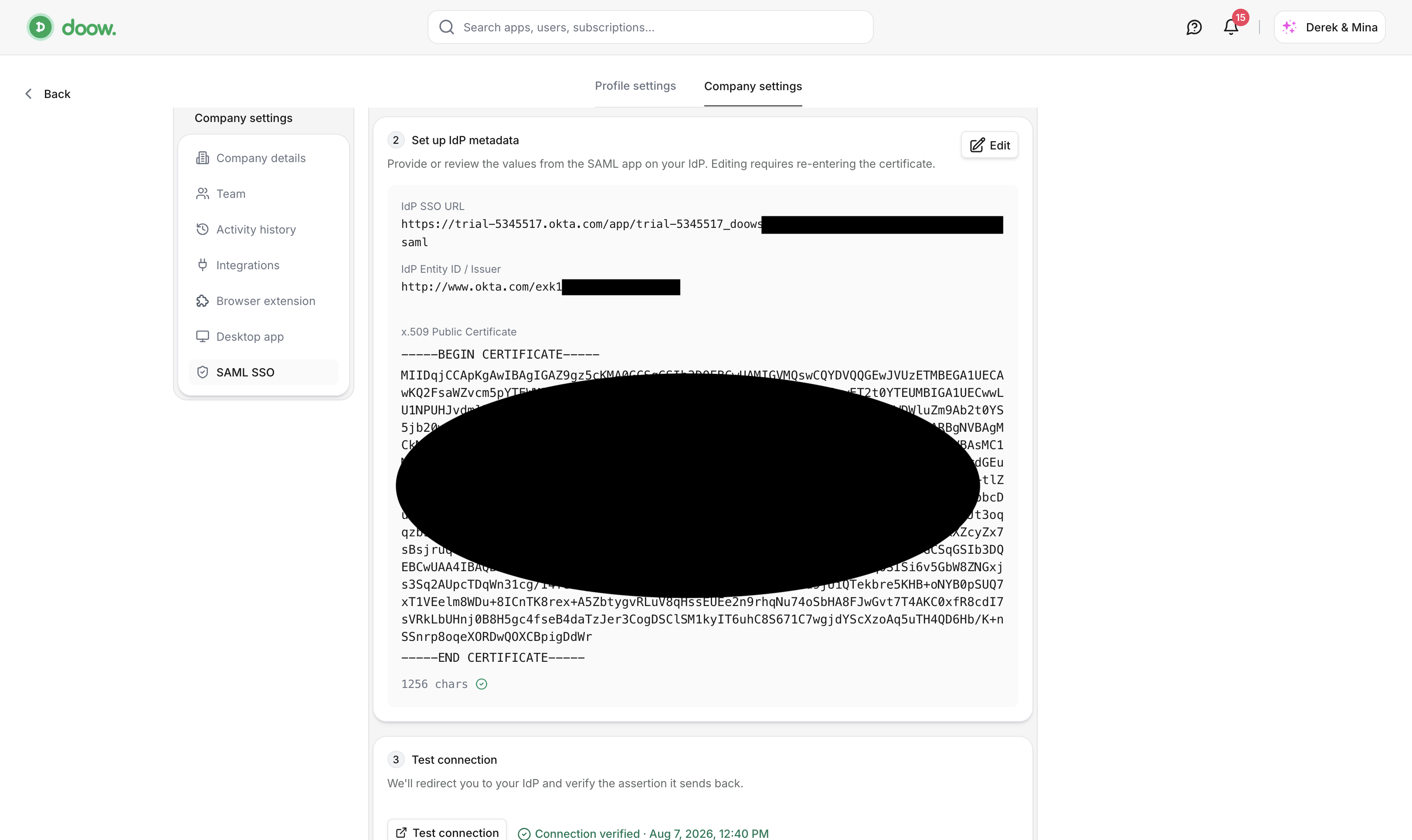
Once you have the IdP values from your identity provider, return to the Doow SAML settings page and enter:
- IdP SSO URL — the login URL or SAML endpoint from your IdP.
- IdP Entity ID — the issuer URL or identifier from your IdP.
- IdP Certificate — the X.509 signing certificate from your IdP.
- Select Save.
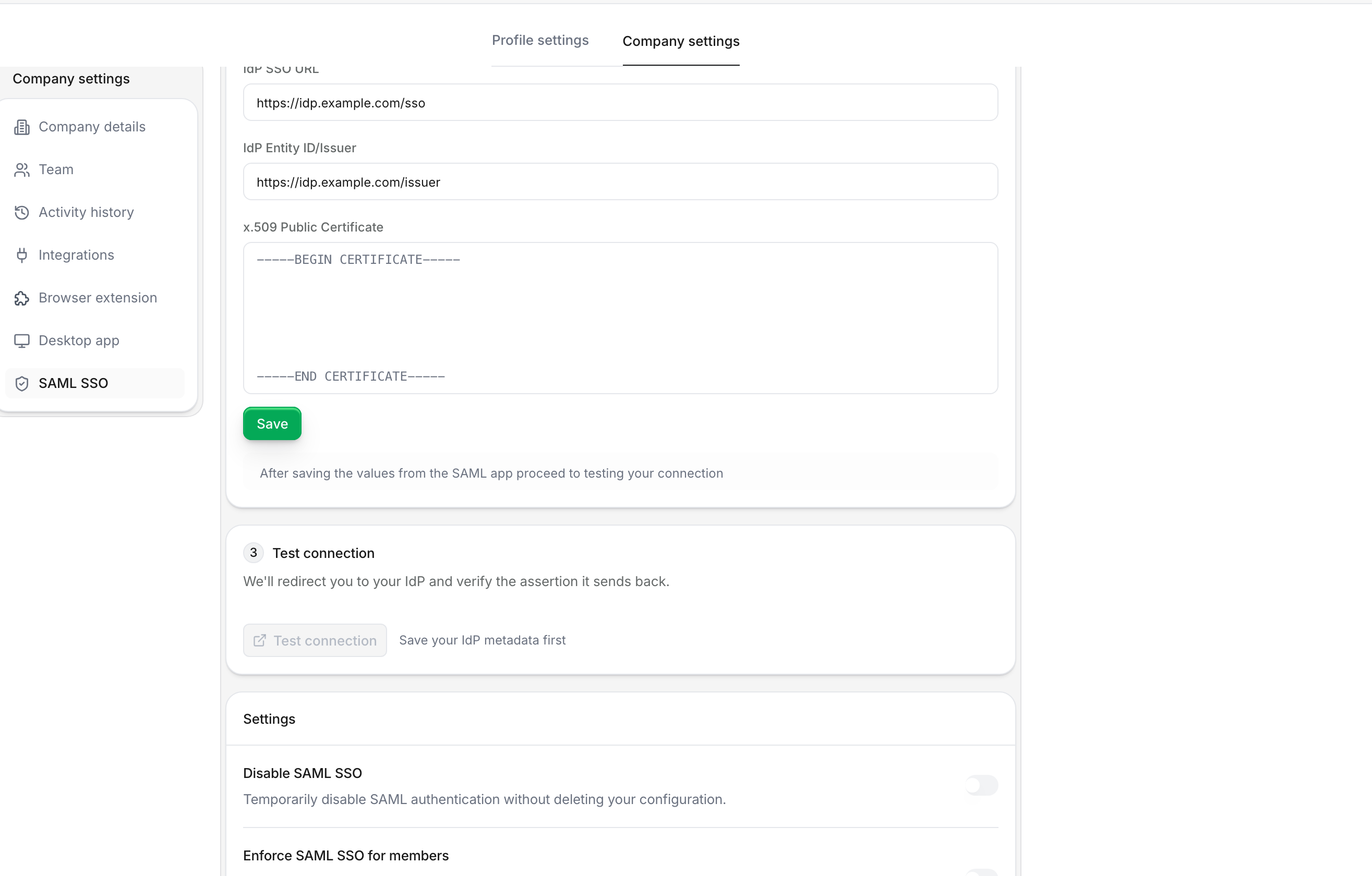
Once saved, your IdP metadata appears in the settings:
Step 3: Test the connection
Before enabling SAML SSO for your organization, test the connection:
- Select Test connection on the SAML SSO settings page.
- A new window opens and redirects you to your IdP.
- Sign in with your IdP credentials.
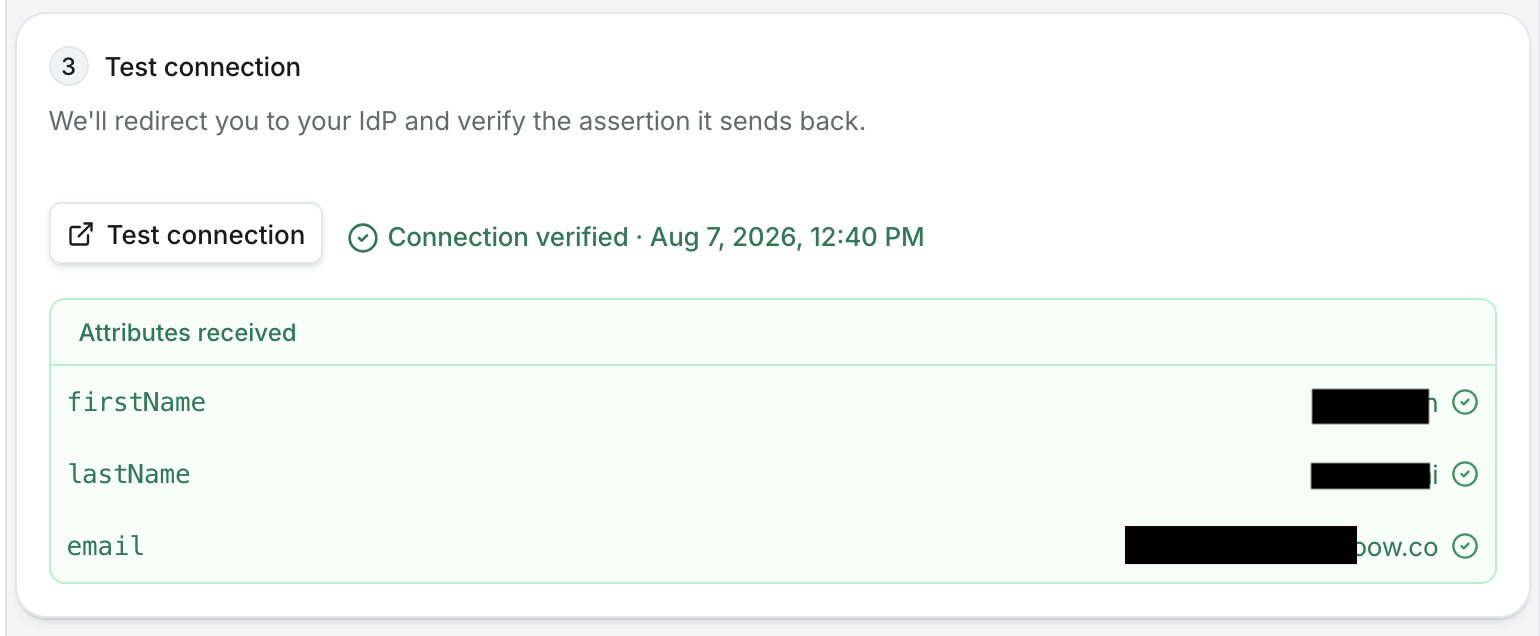
- If successful, Doow displays the attributes received from your IdP.
Verify that the firstName, lastName, and email attributes appear
correctly. If attributes are missing or incorrect, update the attribute mappings
in your IdP and test again.
Enable SAML SSO
After a successful test, enable the connection:
- Toggle Enable SAML SSO to on.
- Members can now sign in using your identity provider.
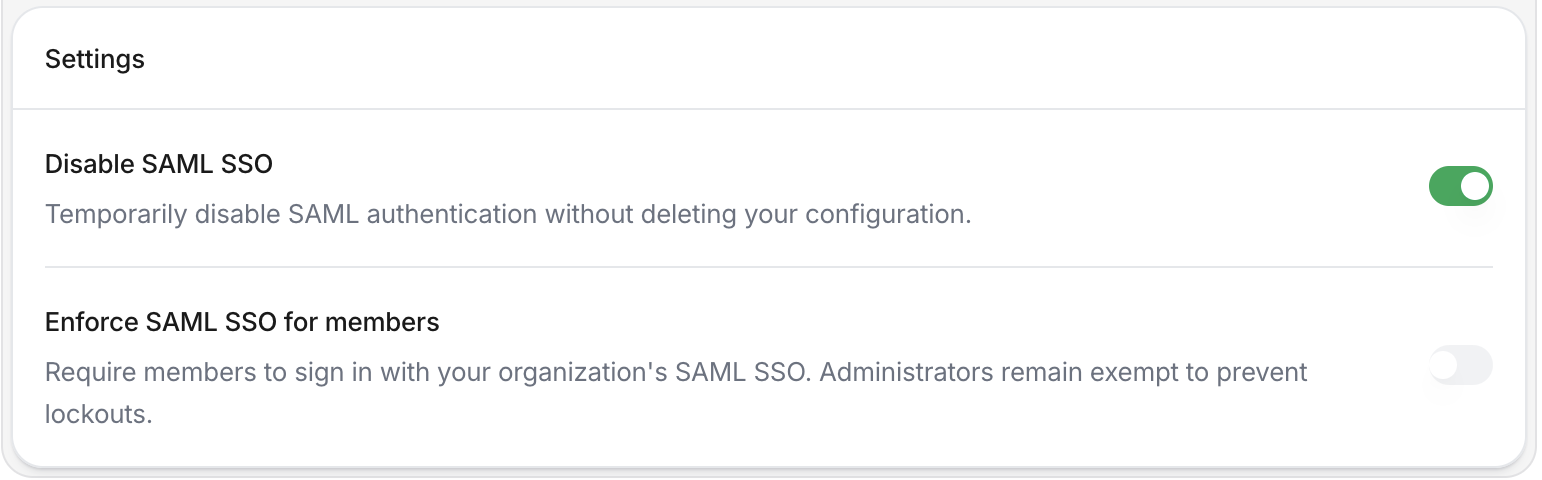
Members with email addresses that match your configured domains will be redirected to your IdP when signing in.
Require SAML SSO
To enforce SAML SSO for all members:
- Ensure you have successfully tested the SAML connection.
- Toggle Require SAML SSO for members to on.
- Confirm the action.
When SAML SSO is required:
- Members must authenticate through your IdP to access Doow.
- Password-based sign-in is disabled for members.
- Administrators retain fallback access if your IdP is unavailable.
Signing in with SAML SSO
Once SAML SSO is enabled, members sign in through your identity provider:
- Go to the Doow sign-in page and click Log in with SAML SSO.
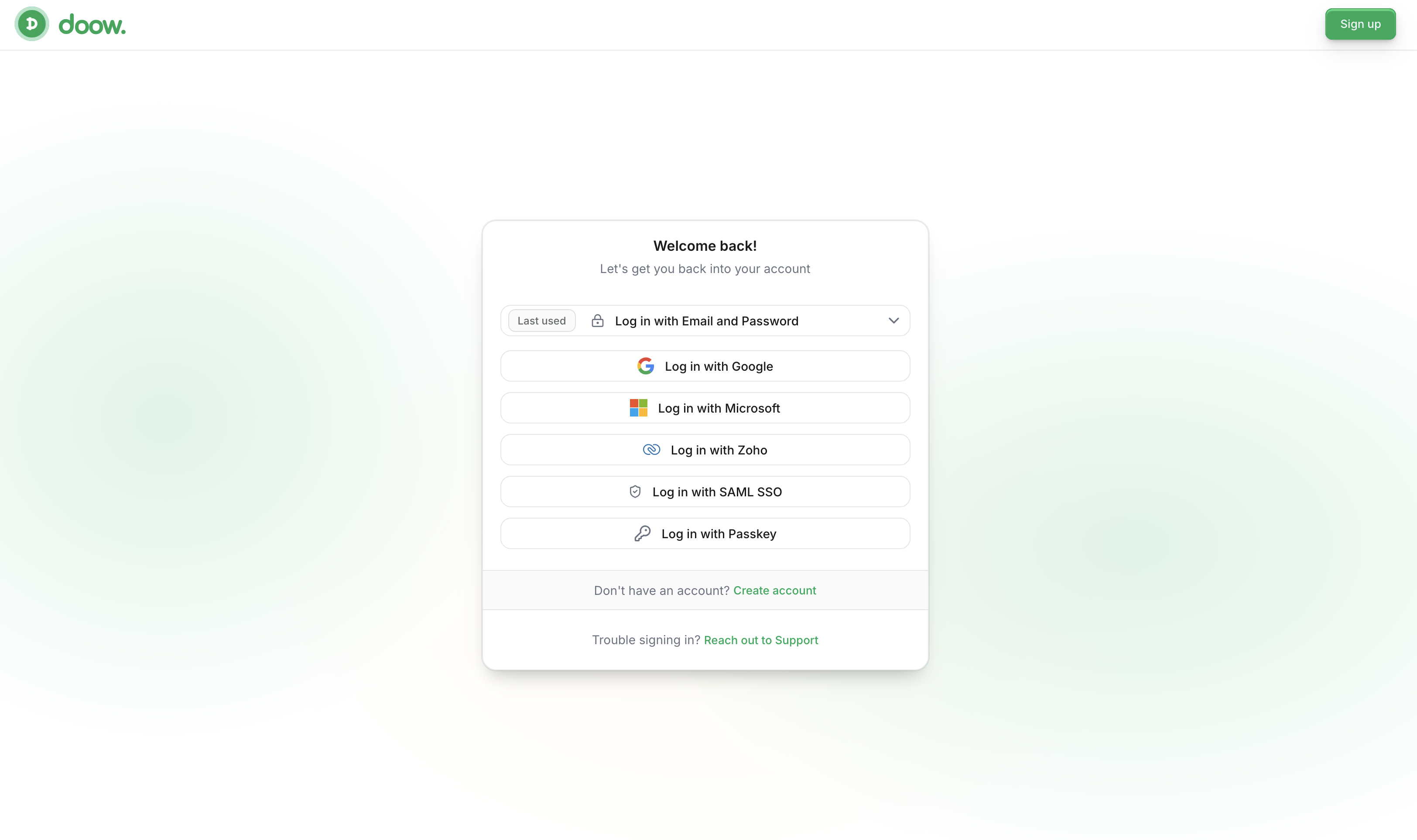
- Enter your work email address and click Login.
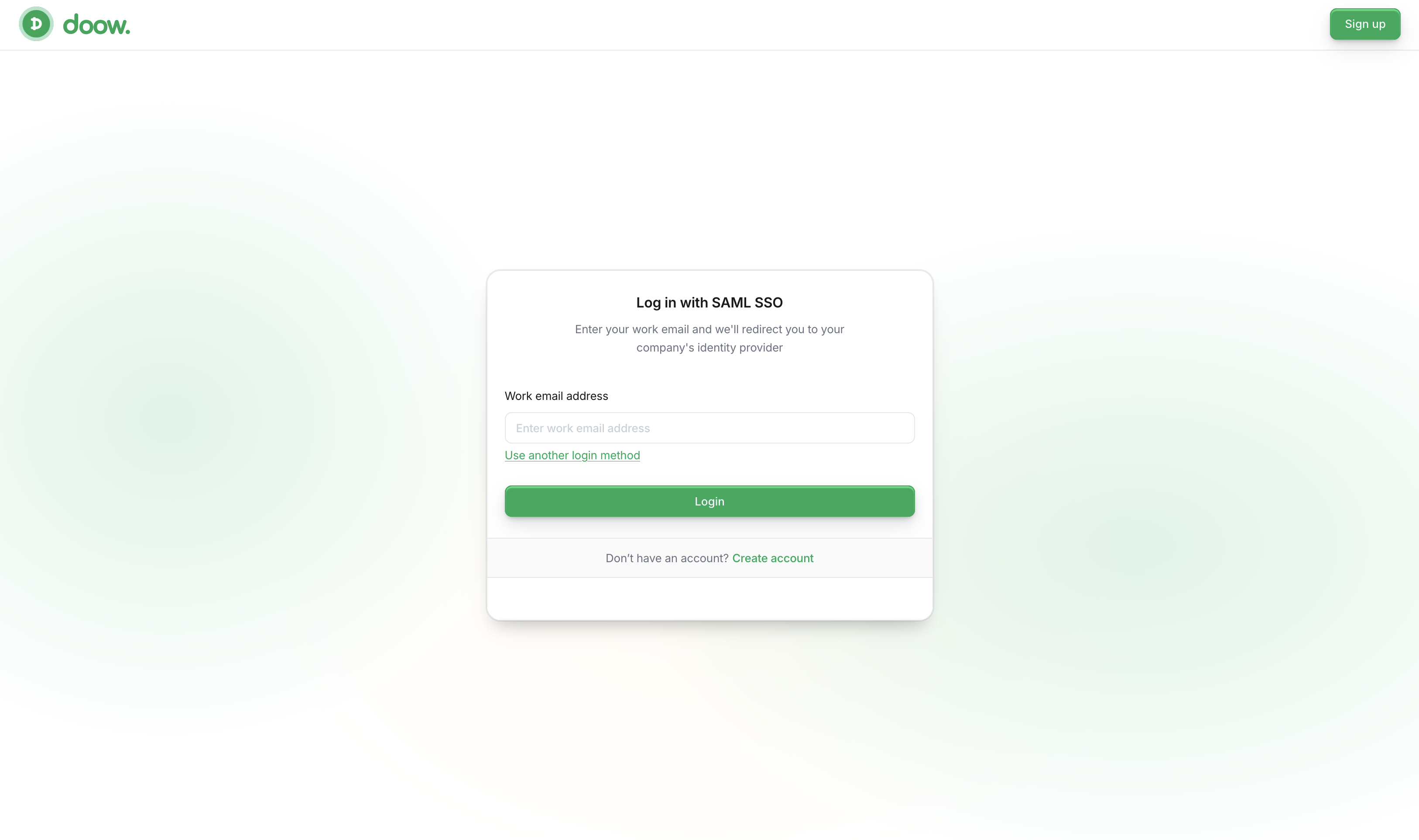
- You are redirected to your identity provider. Authenticate with your IdP credentials.
- After successful authentication, you are signed in to Doow.
Troubleshooting
| Symptom | Likely cause | Next action |
|---|---|---|
| SAML assertion is rejected | Certificate mismatch or expired | Re-download the IdP certificate and update it in Doow |
| Attributes are missing | IdP attribute mappings not configured | Add firstName, lastName, and email attribute statements in your IdP |
| Email does not match | IdP sends a different email format | Ensure the email attribute matches the member's Doow email exactly |
| Redirect loop | ACS URL or Entity ID mismatch | Verify the ACS URL and Entity ID in your IdP match the values from Doow |
| Members cannot sign in | SAML connection is disabled | Enable the SAML connection in Doow settings |
Certificate issues
SAML certificates typically expire after one to three years. When your IdP certificate is rotated:
- Download the new certificate from your IdP.
- Update the certificate in Company Settings → SAML SSO.
- Test the connection before the old certificate expires.
Disabling SAML SSO
To disable SAML SSO:
- Go to Company Settings → SAML SSO.
- If SAML SSO is required, toggle Require SAML SSO for members to off first.
- Toggle Enable SAML SSO to off.
Members will return to password-based authentication. Members who do not have a password set will need to use the password reset flow.
Next steps
- Set up SCIM provisioning to automatically sync users from your identity provider.
- Review SSO security considerations for how SAML and SCIM traffic is protected.